
What this does
When a BottleneckIQ alert rule fires (stuck-in-status, cycle-time exceeded, no activity, trend worsening, WIP limit breach), the alert posts as a message in a Slack channel you pick. Your team sees the alert in their normal Slack workflow — no need to come back to the BottleneckIQ tab to check.
What you'll need
- A Slack workspace where you can create apps. Most workspaces allow this for any member; some workspaces restrict it to admins — if you can't create an app, ask your Slack admin.
- ~90 seconds.
Step-by-step
-
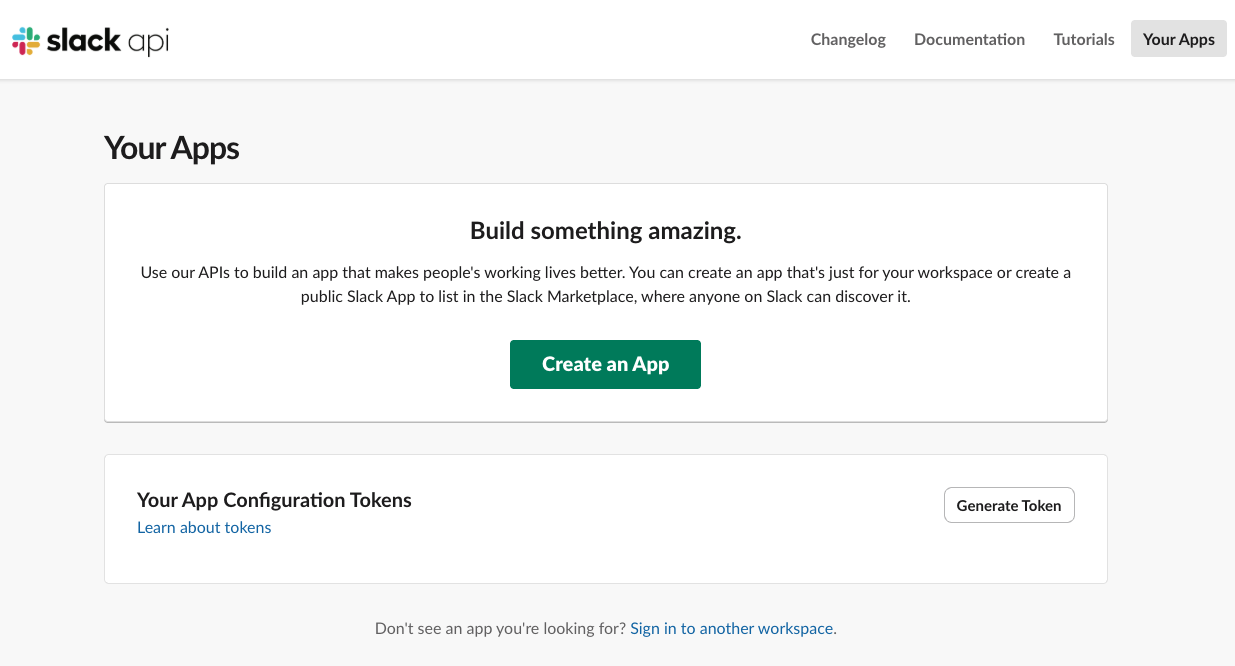
Open api.slack.com/apps in your browser. Sign in with your Slack workspace if prompted. Click Create an App.
-
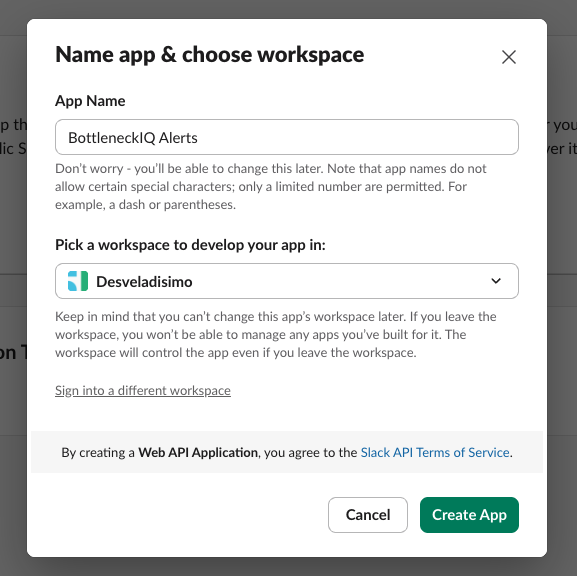
Choose From scratch. Name the app (we suggest BottleneckIQ Alerts — anything works; this name only shows up internally) and pick the Slack workspace where you want the alerts to land. Click Create App.
-
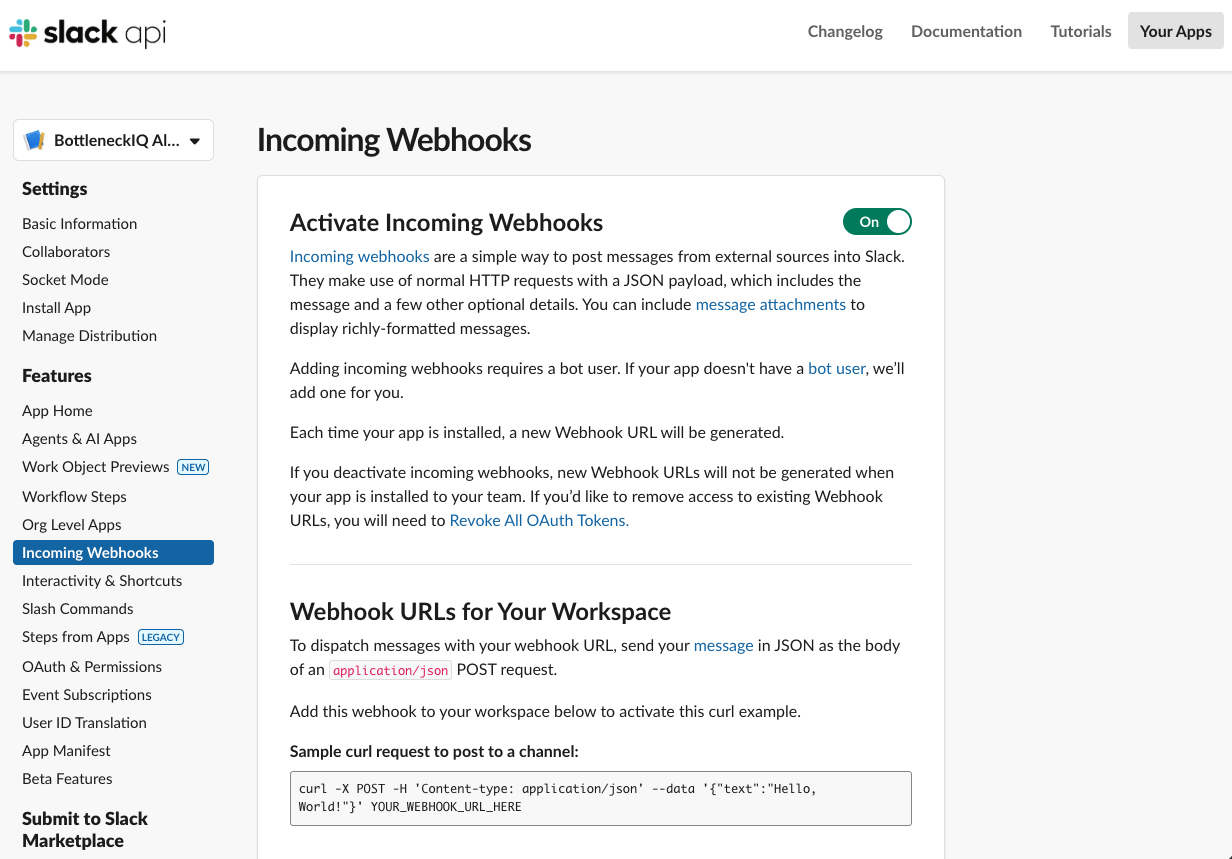
In the sidebar, click Incoming Webhooks. Turn the Activate Incoming Webhooks toggle to On.
-
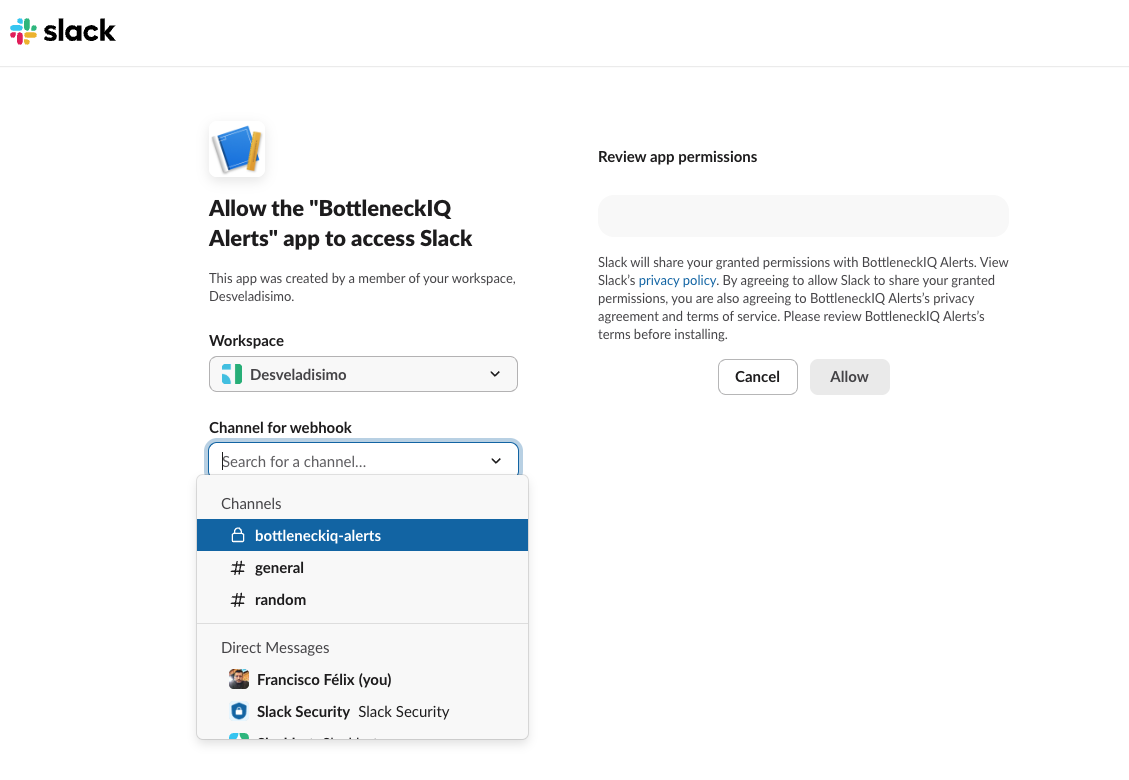
Scroll to the bottom and click Add New Webhook to Workspace. Choose the channel where you want BottleneckIQ alerts to appear (you'll see the channel picker with your channels listed). Click Allow.
-
You'll see a new webhook URL listed under Webhook URLs for Your Workspace. It starts with
https://hooks.slack.com/services/.... Click the Copy button next to it.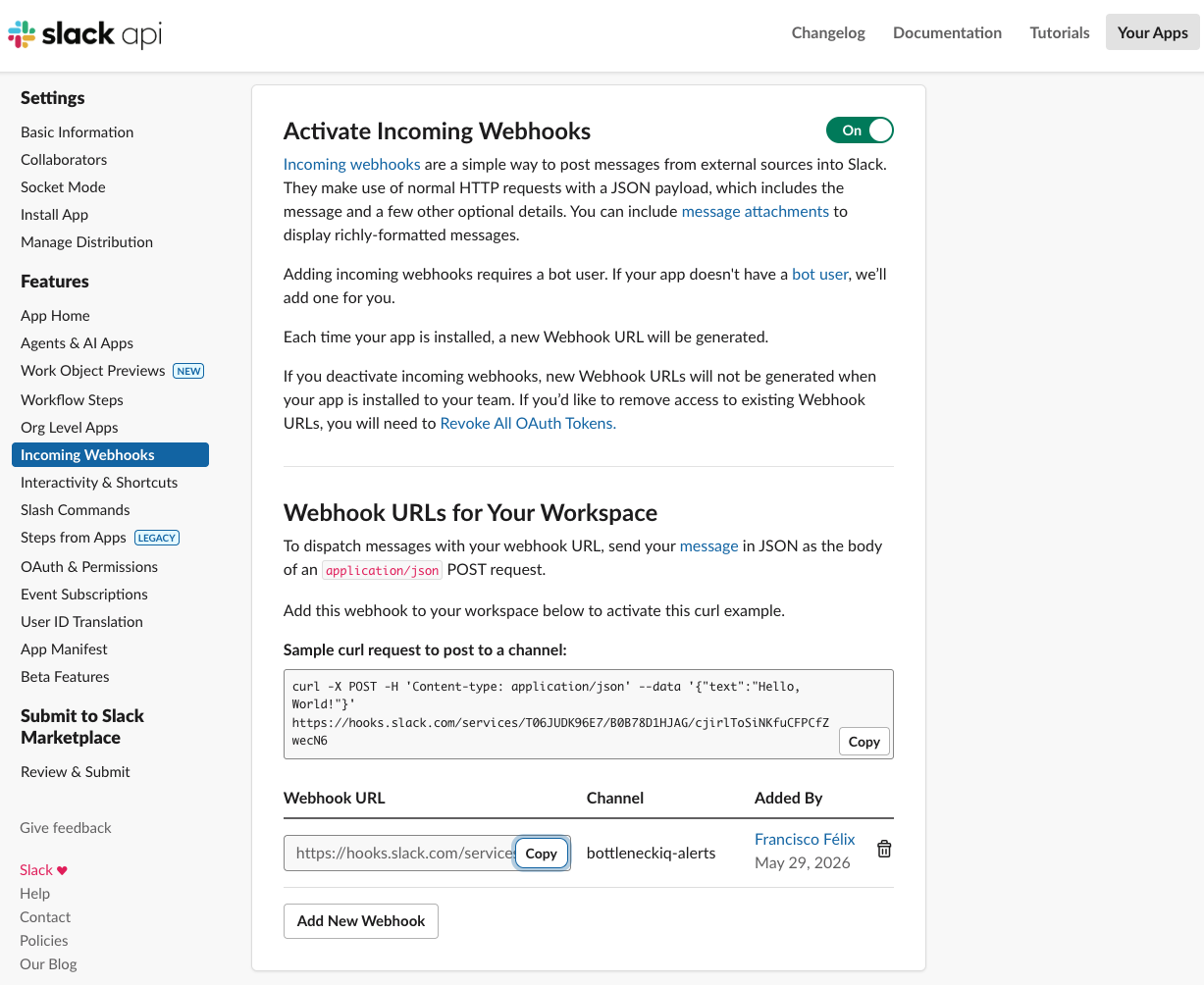
-
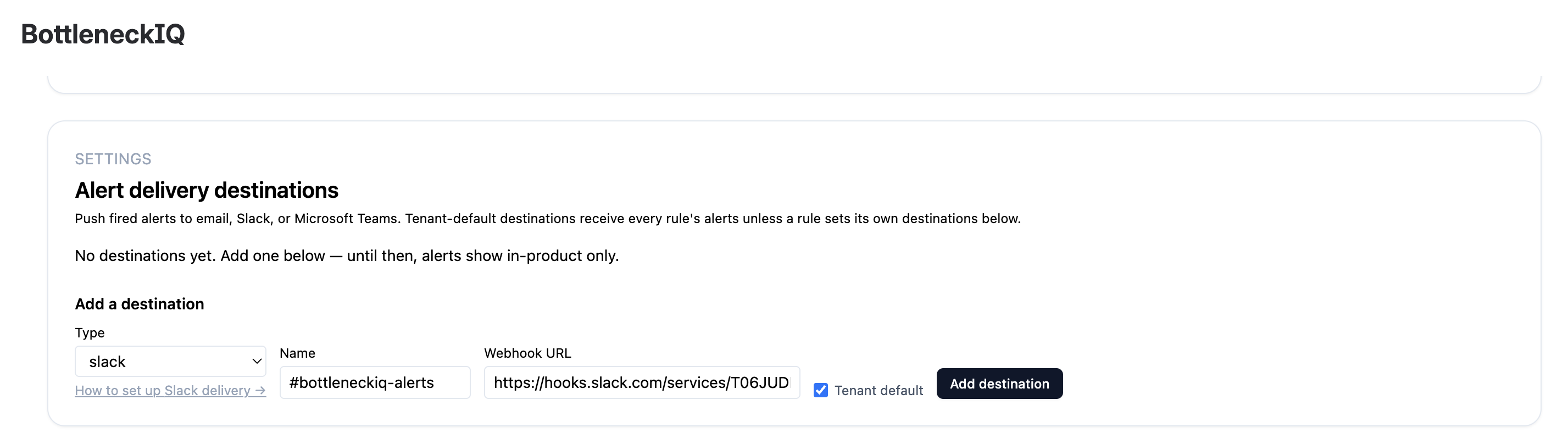
In BottleneckIQ, open Settings → Alert Destinations, click Add destination, pick Slack, paste the URL into the field, give the destination a name your team will recognize (e.g., #bottleneckiq-alerts), and click Add destination.
-
Click Send test on the destination row. Within a few seconds, a clearly-labeled test message appears in the Slack channel you chose.
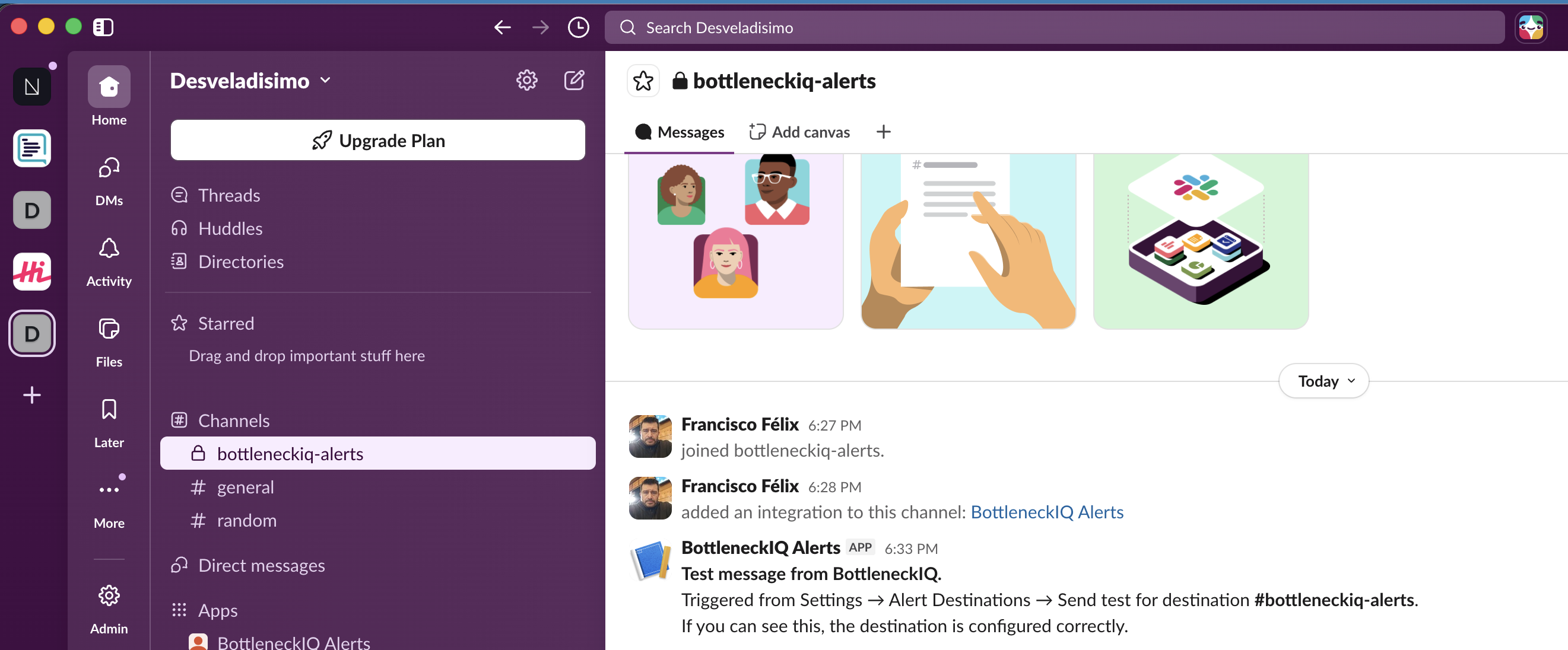
You're done.
Now what
- Open Settings → Alerts and configure which alert rules should deliver to this Slack destination (or leave the destination as Tenant default so all rules use it).
- You can add the same Slack destination to multiple alert rules, or have multiple Slack destinations (e.g., separate channels for separate teams).
Troubleshooting
- "Send test" returns an error or no message arrives. Verify the webhook URL is complete (it's long; truncated URLs fail silently). Re-copy from Slack and try again.
- No test message arrives but no error shows. Check whether the Slack app you created is still installed in the workspace — admins sometimes remove apps without notice. If removed, the webhook URL stops working; reinstall the app.
- You see "invalid_payload" in the error. Almost always a copy-paste issue. Re-copy the URL.
- You don't see the test message in the channel you expected. The webhook URL is bound to the channel you picked in step 4. If you want a different channel, go back to
api.slack.com/apps→ your app → Incoming Webhooks → and add a new webhook for the other channel.
Removing a Slack destination
- In BottleneckIQ: Settings → Alert Destinations → click Remove next to the destination. Any alert rules routed only to this destination will fall back to the tenant-wide default destinations.
- In Slack: go to
api.slack.com/apps→ your app → Incoming Webhooks → remove the webhook (or delete the entire app). The URL becomes invalid; BottleneckIQ marks the destination as failed on next dispatch.
Why a Slack App?
Slack requires that incoming webhooks be created inside a Slack App you control in your own workspace. The app belongs to you, not to BottleneckIQ — we never see your workspace contents and have no Slack-side credentials. The webhook URL is the only thing BottleneckIQ stores, and it only allows us to post to the single channel you bound it to.