What this does
When a BottleneckIQ alert rule fires (stuck-in-status, cycle-time exceeded, no activity, trend worsening, WIP limit breach), the alert posts as a message in a Microsoft Teams channel you pick. Your team sees the alert in their normal Teams workflow — no need to come back to the BottleneckIQ tab to check.
Note (2026): Microsoft retired the older "Connectors → Incoming Webhook" path in May 2026. The current path uses the Workflows app in Teams (powered by Power Automate). These steps reflect the new path. If you find an older tutorial that walks through Connectors → Incoming Webhook, that path no longer works.
What you'll need
- A Microsoft Teams channel where you can add a workflow. Most channels allow this for any member; some are restricted — if you don't see the Workflows option in the channel menu, ask your Teams admin.
- ~60 seconds.
Step-by-step
-
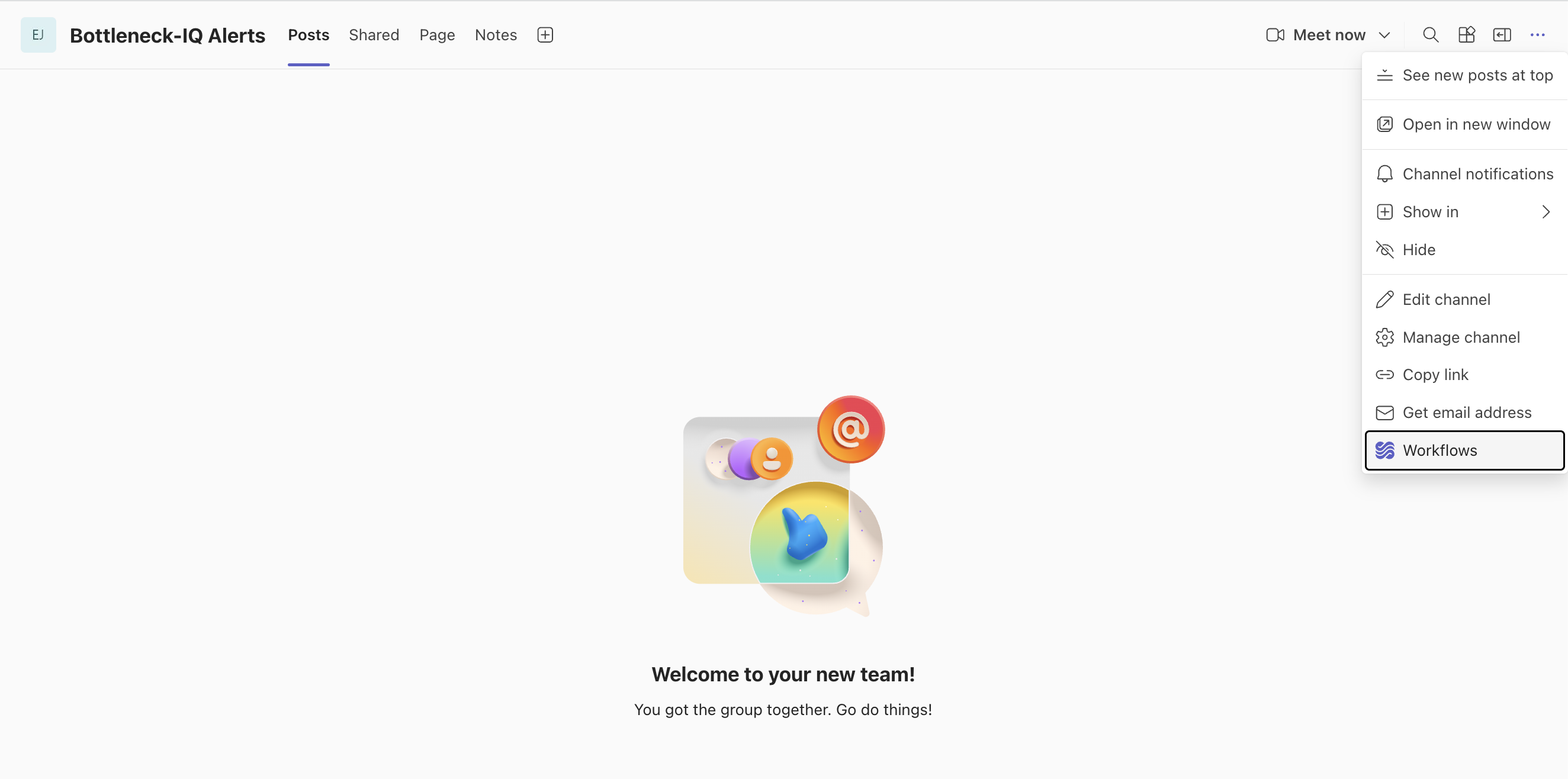
Open Microsoft Teams. Navigate to the channel where you want BottleneckIQ alerts to appear. Click the … (More options) menu next to the channel name, then select Workflows.
-
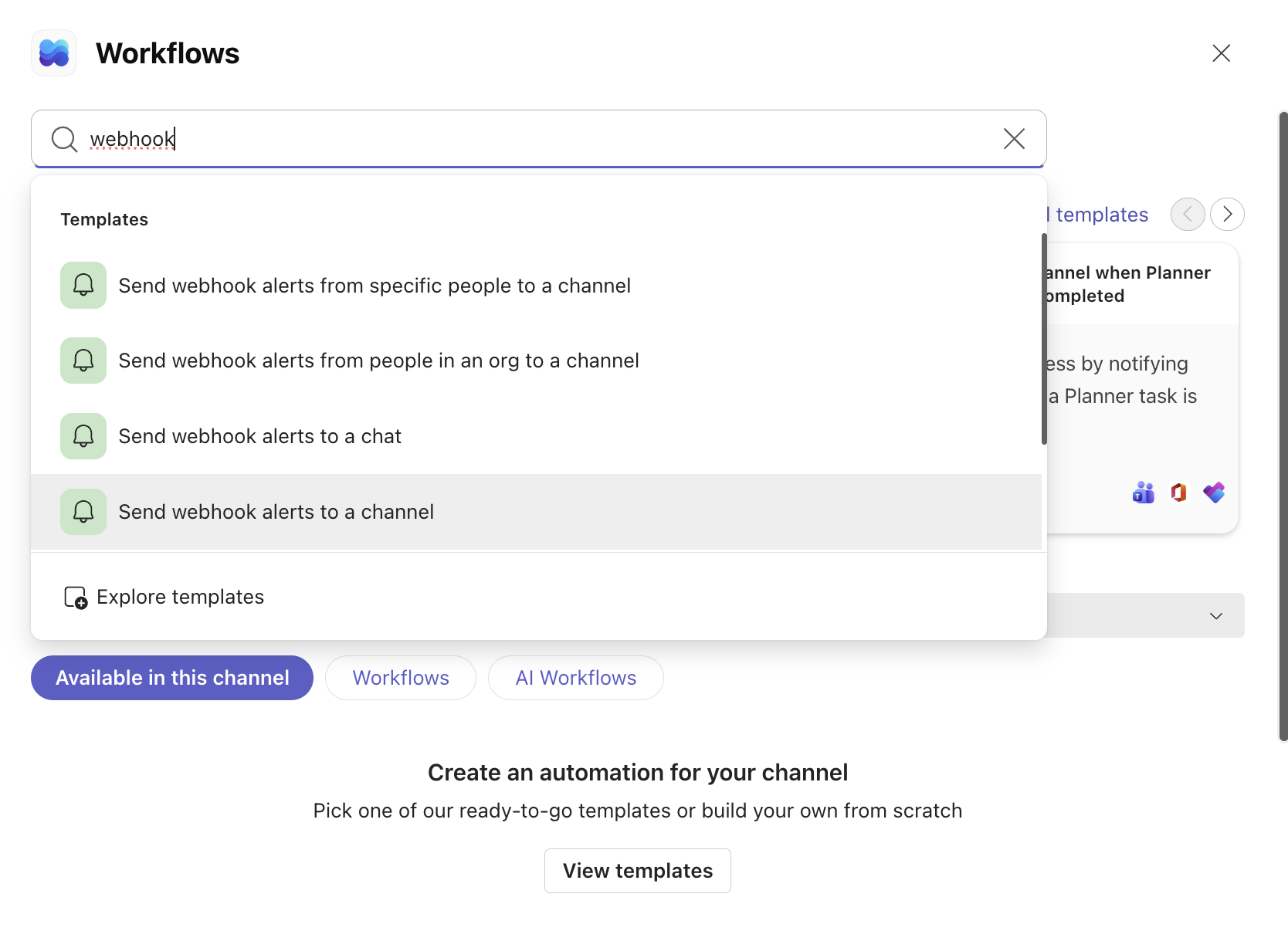
In the Workflows panel, type webhook in the search box. Select the Send webhook alerts to a channel template.
-
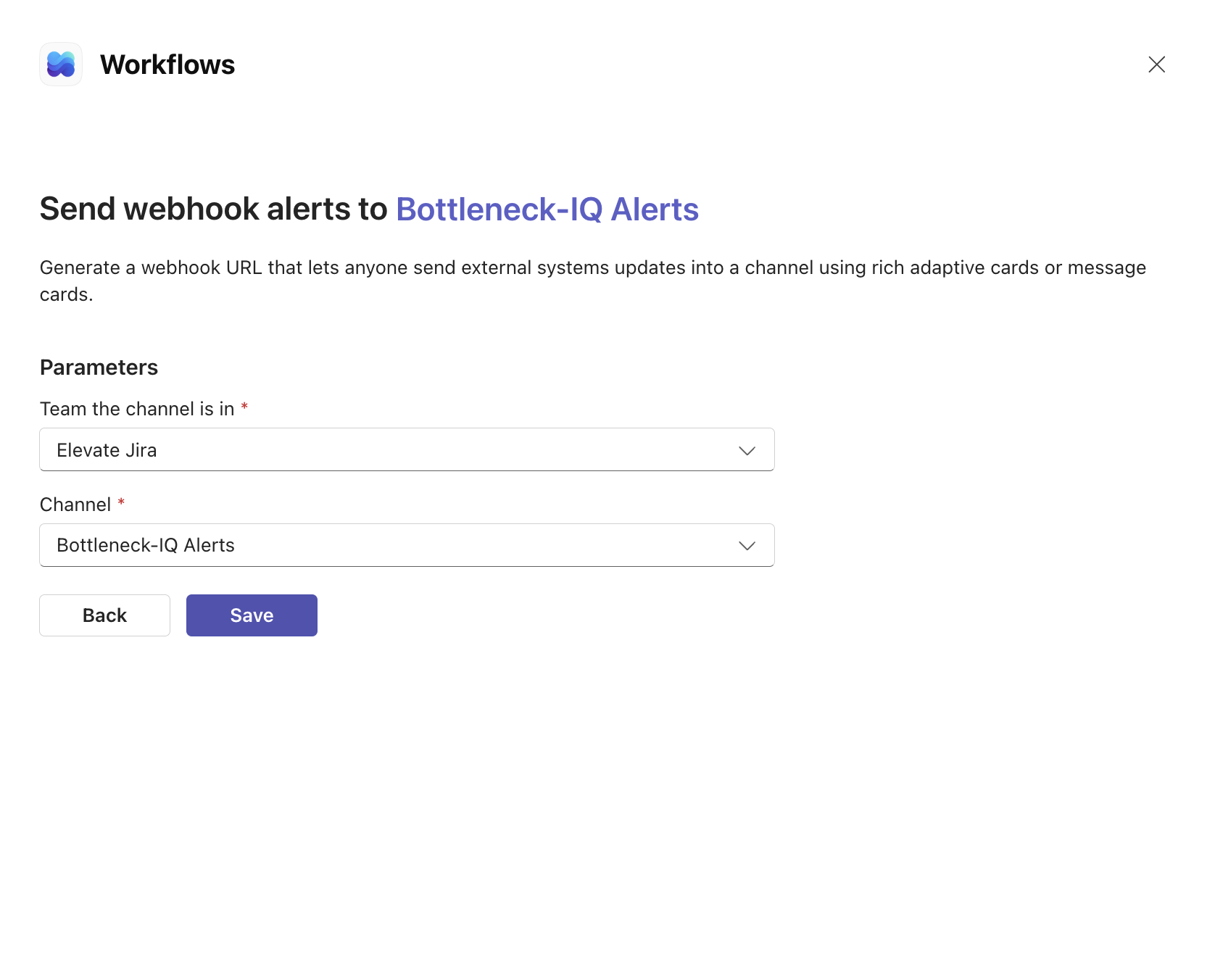
Configure the workflow. The Team the channel is in and Channel fields are pre-filled with the channel you just opened — just confirm they're correct. Click Save.
-
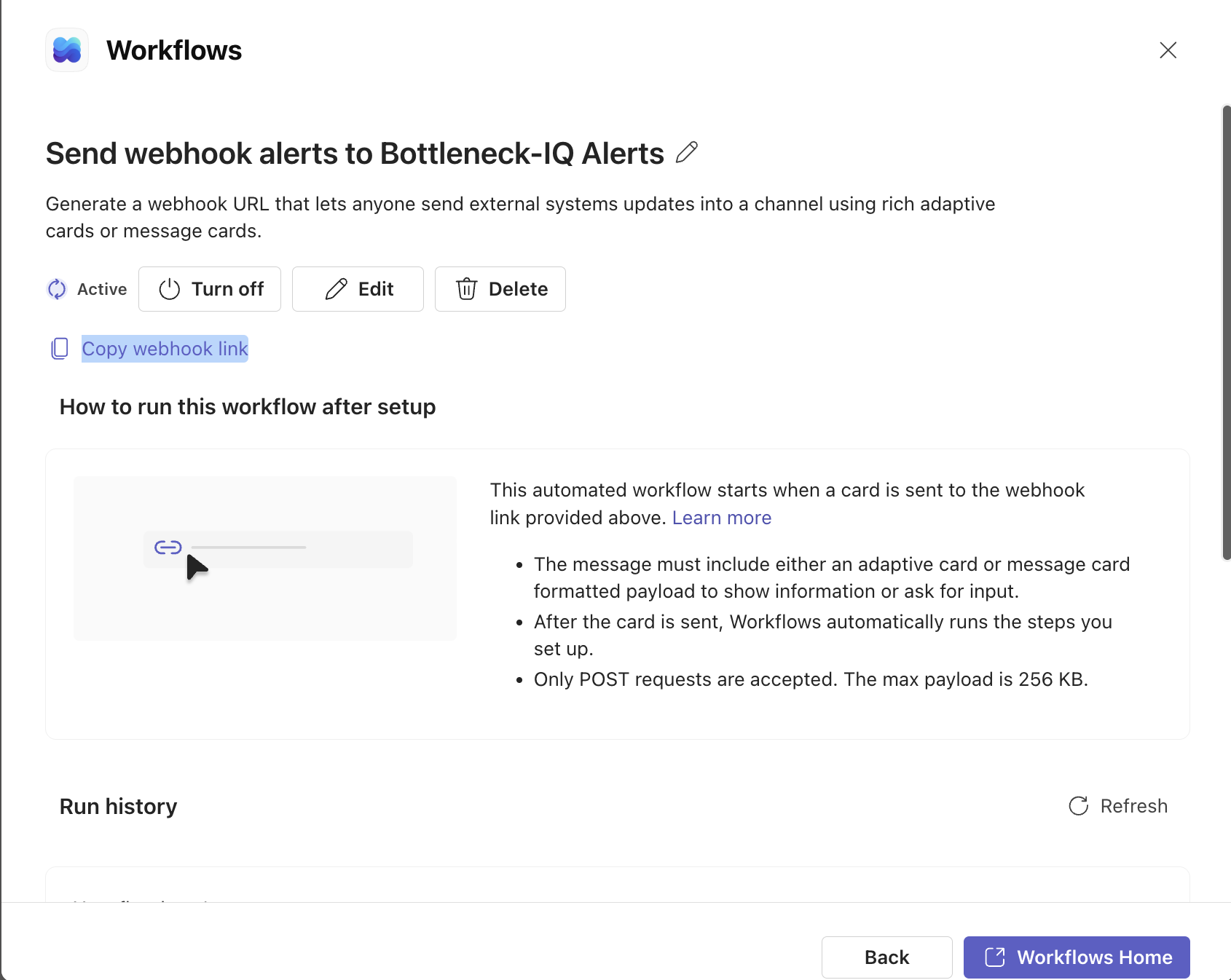
Workflows shows the created automation. Click Copy webhook link.
-
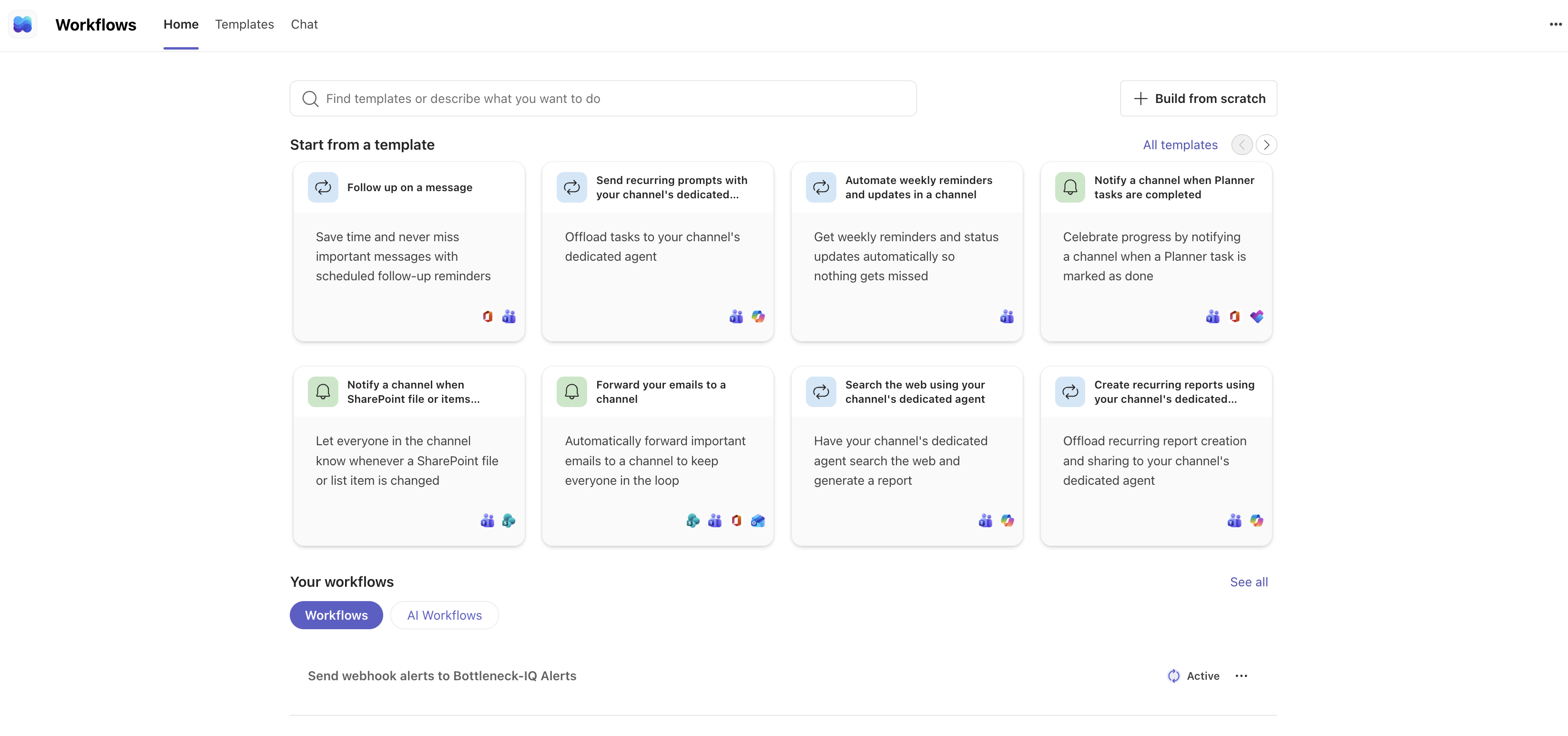
(Optional) Open the Workflows app in Teams (left rail). You should see your new workflow listed under Your workflows with Active status.
-
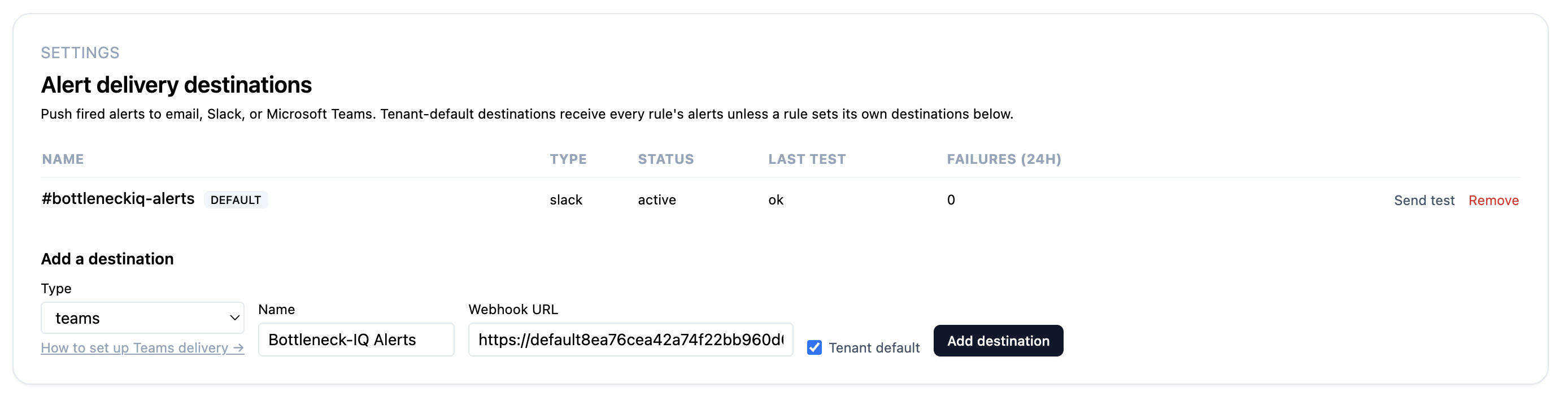
In BottleneckIQ, open Settings → Alert Destinations, click Add destination, pick Microsoft Teams, paste the webhook URL into the field, give the destination a name your team will recognize, and click Add destination.
-
Click Send test on the destination row. Within a few seconds (the first call can take up to ~20 seconds while Power Automate warms up), a clearly-labeled test message appears in the Teams channel.
You're done.
Now what
- Open Settings → Alerts and configure which alert rules should deliver to this Teams destination (or leave the destination as Tenant default so all rules use it).
- You can add multiple Teams destinations (one per channel) — repeat the steps above for each channel.
Troubleshooting
- First "Send test" is slow. The Workflows runtime (Power Automate) has a cold-start cost — first invocation after a quiet period can take 10–20 seconds before the message arrives. Subsequent calls are fast. If the first test seems to hang, give it ~30 seconds before retrying.
- "Send test" returns a timeout error. If after ~30 seconds nothing shows up in Teams: verify the webhook URL is complete (it's long; truncated URLs fail). Re-copy from the Workflow detail page and try again. Also check that the workflow shows Active in the Workflows app — disabled workflows still accept POSTs but never post to the channel.
- A 404 or 410 error in the destination's failure surface. Almost always means the workflow was deleted or disabled on the Teams side. Recreate the workflow and update the URL in BottleneckIQ.
- You don't see the Workflows option in the channel menu. Your Teams admin may have restricted workflow creation on that channel. Ask the admin to either grant the permission or create the workflow on your behalf and share the webhook URL.
Removing a Teams destination
- In BottleneckIQ: Settings → Alert Destinations → click Remove next to the destination. Any alert rules routed only to this destination will fall back to the tenant-wide default destinations.
- In Teams: open the Workflows app → Your workflows → More actions (…) next to the workflow → Delete (or Turn off if you want to keep it for later). The URL becomes invalid; BottleneckIQ marks the destination as failed on next dispatch.
Why Workflows instead of a Teams app?
The Workflows app (powered by Microsoft Power Automate) is the current Microsoft-recommended way to deliver external messages to a Teams channel — it replaced the older Connectors → Incoming Webhook path in May 2026. The webhook URL is the only thing BottleneckIQ stores, and it only allows us to post to the single channel the workflow is bound to. A full Teams app with bot user and interactive cards is on the post-revenue roadmap; for now, the Workflows webhook does the load-bearing job.